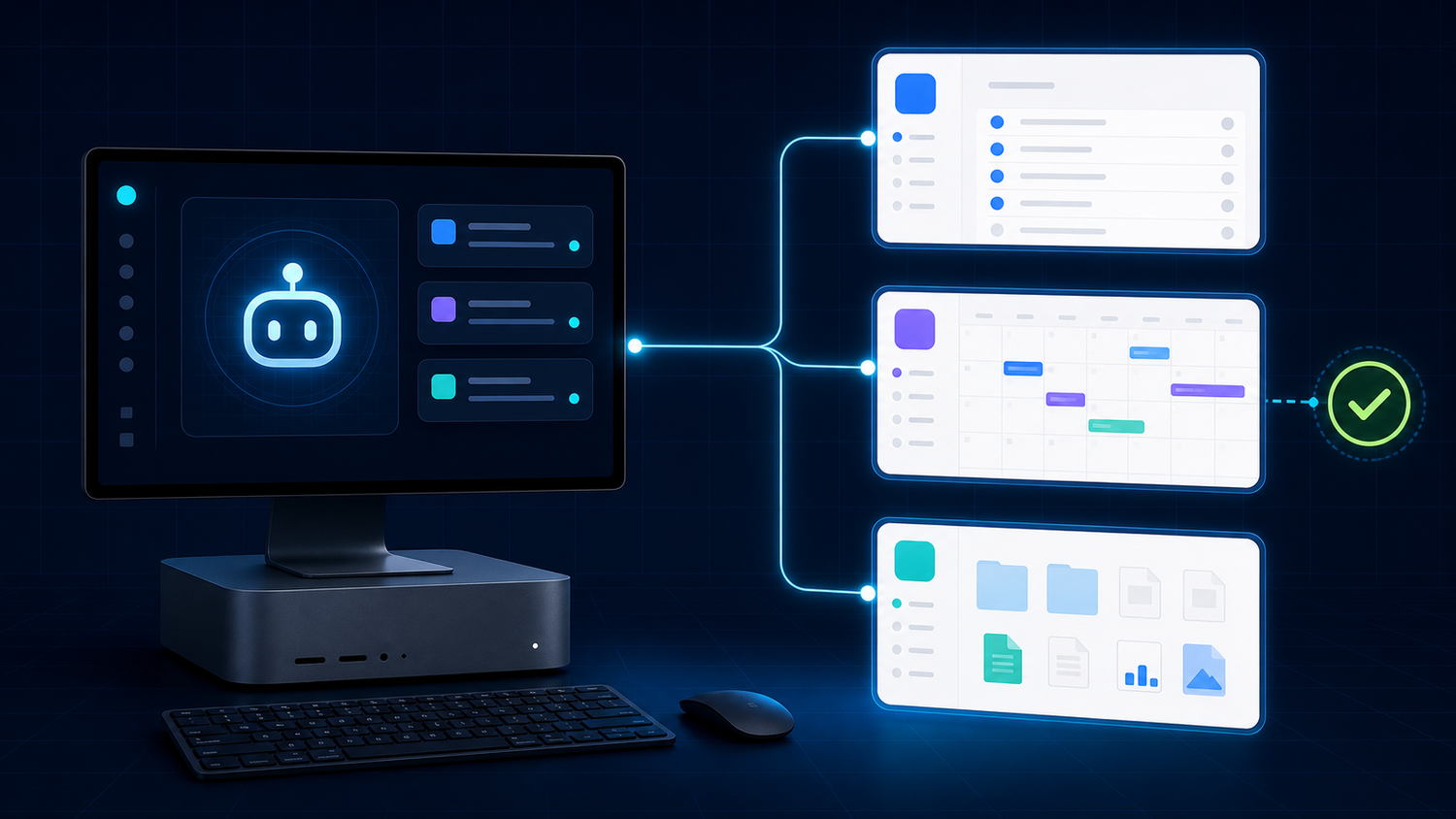
Your ProductiveBot can read your Gmail, manage your Google Calendar, search Google Drive, and update Sheets and Docs. This guide walks you through connecting it all, step by step. About 20 to 30 minutes of setup, and then your AI can access your entire Google Workspace with a simple chat message.
Why Connect Google Workspace?
Right now, when you ask your ProductiveBot to check your email or look at your calendar, it can't. It doesn't have permission. Google (rightfully) keeps your data locked down unless you explicitly grant access.
Once you complete this setup, you can do things like:
- "Check my email for anything from our supplier this week"
- "What's on my calendar tomorrow?"
- "Find the Q1 budget spreadsheet in my Drive"
- "Send a follow-up email to Sarah about the proposal"
- "Add a team meeting on Tuesday at 2pm"
Your AI handles it through a tool called gog, a command-line interface that talks to Google's APIs. It comes pre-installed on every ProductiveBot. You just need to give it permission to access your account.
What You'll Need
- Your ProductiveBot, powered on and connected to your network
- A Google account (personal Gmail or Google Workspace both work)
- Access to the Google Cloud Console (free, no billing required)
- About 20 to 30 minutes
The setup has two parts. First, you tell Google you want to create a connection (Steps 1 through 4, done in your web browser). Then you configure gog on your ProductiveBot to use that connection (Steps 5 through 7, done in the terminal).
Step 1: Create a Google Cloud Project
Google requires something called an "OAuth app" before any outside tool can access your account. This sounds more technical than it is. You're basically telling Google: "I'm giving my own AI permission to access my own stuff."
- Go to console.cloud.google.com
- Sign in with the Google account you want your ProductiveBot to access
- Click the project dropdown at the top of the page (it might say "Select a project")
- Click New Project
- Name it something recognizable, like
ProductiveBot CLIorAI Assistant - Click Create
- Make sure your new project is selected in the dropdown at the top
Write down your Project Number from the project dashboard. It's a long number. You probably won't need it often, but it's good to have.
Step 2: Set Up the OAuth Consent Screen
Before Google lets you create credentials, you need to configure a "consent screen." This is where Google asks what your app is called and who can use it.
- In the Cloud Console, go to APIs & Services > OAuth consent screen
- Choose External as the user type, then click Create
- Fill in the required fields:
-
App name: Something like
ProductiveBot Assistant - User support email: Your email address
- Developer contact email: Your email address
-
App name: Something like
- Click Save and Continue
- On the Scopes screen, click Add or Remove Scopes and add these six:
https://www.googleapis.com/auth/gmail.modifyhttps://www.googleapis.com/auth/calendarhttps://www.googleapis.com/auth/drivehttps://www.googleapis.com/auth/contactshttps://www.googleapis.com/auth/documentshttps://www.googleapis.com/auth/spreadsheets
- Click Update, then Save and Continue
- On the Test users screen, click Add Users and add your own Google email address
- Click Save and Continue, then Back to Dashboard
Since this app is just for you, it stays in "testing" mode permanently. Only the email addresses you add as test users can authorize it. That's perfectly fine because you're the only person using it. No need to go through Google's app verification process.
Step 3: Create OAuth Credentials
Now you'll create the actual credentials file that gog needs.
- Go to APIs & Services > Credentials
- Click + Create Credentials > OAuth client ID
- For Application type, choose Desktop app
- Name it something like
gog CLIorProductiveBot - Click Create
- Click Download JSON on the confirmation screen
Save the file somewhere you can find it. It will have a long name starting with client_secret_. Keep this file safe. You'll feed it to gog in a later step.
Step 4: Enable the Google APIs
gog needs specific Google APIs turned on in your project. Without these, everything will install and authenticate fine, but then fail when you actually try to use it.
- In the Cloud Console, go to APIs & Services > Library
- Search for and Enable each of these (click each one, then click the blue Enable button):
- Gmail API
- Google Calendar API
- Google Drive API
- People API (this handles Contacts)
- Google Docs API
- Google Sheets API
You only need to enable the ones you plan to use, but we recommend enabling all six so everything works when you need it.
If you skip this step, gog will seem like it's working. It installs, authenticates, and connects to your account. But then when you try to search your Drive or read an email, you'll get: googleapi: Error 403: Google Drive API has not been enabled. The fix is simple. Come back here and enable the missing API.
Step 5: Transfer the Credentials File
You need to get that downloaded JSON file from your computer onto your ProductiveBot. A few easy ways to do this:
- AirDrop (Mac to Mac): AirDrop the file to your ProductiveBot Mac Mini. It lands in the Downloads folder.
- Drag and drop: If you're using Screen Sharing or the Setup Wizard terminal, just drag the file in.
-
SCP from your terminal:
scp ~/Downloads/client_secret_*.json productivebot@productivebot.local:~/Downloads/
The file just needs to be somewhere on the ProductiveBot where you can reference it. The Downloads folder works fine.
Step 6: Configure gog on Your ProductiveBot
Now you're working on the ProductiveBot itself. Open a terminal (via SSH, the Setup Wizard, or Screen Sharing) and follow these steps.
Verify gog is installed
gog --versionYou should see something like gog version 0.12.0. If you get "command not found," install it with:
brew install steipete/tap/gogcliIf there's a version conflict from a previous installation:
brew upgrade steipete/tap/gogcli
brew link --overwrite gogcli
Load your OAuth credentials
gog auth credentials set ~/Downloads/client_secret_*.jsonReplace the filename with your actual file name. Tab completion helps here.
Set up the keyring password
gog stores your Google tokens in an encrypted keyring file. It needs a password for this. Add it to your shell profile so it's always available:
echo 'export GOG_KEYRING_PASSWORD=your-password-here' >> ~/.zshrc
source ~/.zshrc
Pick any password you like. It just needs to be the same every time gog runs.
Authorize your Google account
This is the step where you actually give gog permission to access your Google account:
gog auth add your-email@gmail.com --timeout 300sReplace your-email@gmail.com with the Google account you set up in Steps 1 through 4.
What happens next:
- gog prints a URL in the terminal
- Open that URL in a web browser (on any device)
- Sign in with your Google account
- Google shows a consent screen listing permissions. Click Continue
- Google may warn that the app "isn't verified." This is normal. Click Advanced, then Go to [your app name] (unsafe). It's safe because you created this app yourself in Steps 1 through 3.
- After you approve, the browser redirects and gog captures the token automatically
The --timeout 300s gives you 5 minutes to complete the browser flow. Without it, the authorization server might shut down before you finish clicking through Google's screens.
Set your default account
So you don't have to type --account every time:
echo 'export GOG_ACCOUNT=your-email@gmail.com' >> ~/.zshrc
source ~/.zshrc
Verify everything works
Test each service:
# Test Gmail
gog gmail search 'newer_than:1d' --max 5

# Test Calendar
gog calendar events primary --from 2026-03-27T00:00:00Z --to 2026-04-03T00:00:00Z

# Test Drive
gog drive search "test" --max 5

# Test Contacts
gog contacts list --max 5
If any of these return an "API not enabled" error, go back to Step 4 and enable the missing API.
Step 7: Start Using It
Your ProductiveBot's AI assistant already knows how to use gog. Once setup is complete, just ask it things in natural language:
- "Check my email for anything from Amazon in the last week"
- "What's on my calendar tomorrow?"
- "Find the Q1 budget spreadsheet in my Drive"
- "Send an email to john@example.com about the meeting reschedule"
- "Add a meeting with Sarah on Tuesday at 2pm"
- "Update cell B5 in my inventory spreadsheet to 250"
No extra configuration needed. The AI uses gog behind the scenes to handle all of it.
What You Can Do Now
| Service | What Your AI Can Do |
|---|---|
| Gmail | Search, read, send, reply, create drafts |
| Calendar | View events, create meetings, check availability |
| Drive | Search files, open documents, browse folders |
| Contacts | Look up people, find email addresses |
| Sheets | Read data, update cells, append rows, clear ranges |
| Docs | Read documents, export content |
This is one of the most powerful integrations on ProductiveBot. Your AI goes from a smart chat assistant to one that's deeply connected to your actual work tools.
Troubleshooting
"API has not been enabled"
Go back to Step 4 and enable the missing API. The error message tells you exactly which one is missing.
"gog: command not found"
Run brew install steipete/tap/gogcli to install gog. If it was previously installed, run brew upgrade steipete/tap/gogcli && brew link --overwrite gogcli.
OAuth authorization fails or times out
Make sure you included --timeout 300s when running gog auth add. If the browser shows "unable to connect" after you approve, the authorization server shut down before the redirect completed. Just run the command again.
Keyring or token errors
Check that GOG_KEYRING_PASSWORD is set in your environment:
echo $GOG_KEYRING_PASSWORDIf it's empty, add it:
echo 'export GOG_KEYRING_PASSWORD=your-password-here' >> ~/.zshrc
source ~/.zshrc
"Access denied" or "Insufficient permissions"
Your Google account needs to be listed as a test user in the OAuth consent screen (Step 2). Go to the Google Cloud Console, find OAuth consent screen settings, and make sure your email is in the test users list.
Multiple Google accounts
gog supports multiple accounts. Add each one with gog auth add another@gmail.com --timeout 300s. Switch between them with --account another@gmail.com or change your GOG_ACCOUNT variable. See all connected accounts with gog auth list.
Quick Reference
Here's every setup command in order, for those who want to go fast:
# Install/update gog
brew install steipete/tap/gogcli

# Load OAuth credentials
gog auth credentials set ~/Downloads/client_secret_*.json

# Set keyring password
echo 'export GOG_KEYRING_PASSWORD=your-password-here' >> ~/.zshrc
source ~/.zshrc

# Authorize your Google account
gog auth add your-email@gmail.com --timeout 300s

# Set default account
echo 'export GOG_ACCOUNT=your-email@gmail.com' >> ~/.zshrc
source ~/.zshrc

# Test it
gog gmail search 'newer_than:1d' --max 5
gog drive search "test" --max 5
Common Questions
Is it safe to give my AI access to my Google account?
Your credentials never leave your ProductiveBot Mac Mini. The OAuth tokens are stored locally in an encrypted keyring file on your machine. No data passes through our servers. Your AI connects directly from your Mac Mini to Google's API servers.
Do I need to pay for Google Cloud?
No. The Google Cloud project is free. You don't need to add a billing account. The APIs used here (Gmail, Calendar, Drive, Contacts, Docs, Sheets) are all free for personal use within standard quota limits, which are far more than any individual would hit.
Can I connect a Google Workspace (business) account?
Yes. The setup process is the same. If your Google Workspace admin has restricted third-party app access, you may need them to approve the OAuth app first.
What if I want to revoke access later?
Go to myaccount.google.com/permissions and remove the app. You can also delete the Google Cloud project entirely if you want a clean break.
Will this work with multiple Google accounts?
Yes. Add each account with gog auth add and switch between them as needed. See the Troubleshooting section above for details.
If you get stuck at any point, just ask your ProductiveBot's AI assistant. It knows the gog setup process and can troubleshoot errors in real time. You can also reach our support team at support@productivebot.ai or chat with Scout at support.productivebot.ai.


Leave a comment
This site is protected by hCaptcha and the hCaptcha Privacy Policy and Terms of Service apply.